
New tutorial on creating learning modules
Learning modules let you present all of the resources for a specific topic (e.g., one week of class) as a cohesive unit, rather than requiring that students visit several different areas of your Compass course.
This video tutorial covers the basics of creating a learning module.
To Hide or Move Courses in Your Course List
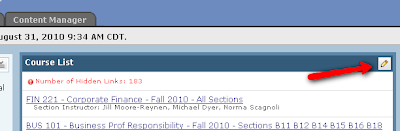
1. Log in to Compass, and from your Course List page (the first page you get to, before entering any course site), and click the Edit Course List button:
2. You will see a list of all of the course sites you have access to in Compass. From this page you can click the Hide Link button to hide any courses you no longer need to access. After you hide a course, the Hide Link button will change to a Show Link button, so at any time you can go back and show a course again.

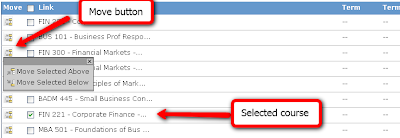
3. You can also reorder the courses in your course list by using the Move buttons on the same page. First, check the checkbox to select the course you would like to move, and then click the Move button next to the course in the list where you would like to move the selected course, and then choose to either Move Selected Above, or Move Selected Below:

2. You will see a list of all of the course sites you have access to in Compass. From this page you can click the Hide Link button to hide any courses you no longer need to access. After you hide a course, the Hide Link button will change to a Show Link button, so at any time you can go back and show a course again.

3. You can also reorder the courses in your course list by using the Move buttons on the same page. First, check the checkbox to select the course you would like to move, and then click the Move button next to the course in the list where you would like to move the selected course, and then choose to either Move Selected Above, or Move Selected Below:

Downloading Student Assignments in Batch
To download all student submissions for a particular assignment:
After you unzip the file you save, you will have a folder for each student who submitted the assignment, in that folder will be an html file that contains the student's name, and the file the student submitted for grade.

Retrieve email addresses from class roster in Banner
Click on the image to open the instructions

If the image doesn't show above this message, please CLICK HERE to download the instructions in pdf format.
Go to the next tutorial if you are interested in creating an outlook distribution list
Read the complete post...How to release grades in Compass
Click on the image to open the instructions

Re-submit an assignment
If you have submitted an assignment but realize that you need to make changes to it, you can check if the instructor has enabled the system to allow you to resubmit before the deadline. You will find out either by asking to the instructor, or it will be indicated by an icon in the top right corner of your assignment screen.
This is how you take back the assignment to resubmit:
1. Open the link of the submitted assignment by clicking on its name
2. Click on the top right icon and edit the assignment


For more details watch the step by step instructions following the link "Read the complete post..."
This movie show step by step instructions on how to resubmit an assignment:
Print the text of this Tutorial
Read the complete post...
Samples of Course Site Organization
When you start a new course site in IL Compass you will see a link in the front page that links to help files and to samples of course site organization. Watch this movie to see that link displayed.
Print the text of this Tutorial
Create Assignments
The Assignment Toolallows the submission of assignments by the students or groups in different formats. Follow the video tutorial next to create assignments. You can also go to the CITES tutorial to view and print the instructions.
Calendar settings in IL Compass(preferences, views, data entry)
The calendar tool is a robust application that allows users to see in one view all the calendars from the different courses that he is participating in, or that allows them to customize the calendar and even add personal information
This video show to set up the Calendar tool in IL Compass(WebCT)
Click on the image to open the instructions

Side Navigation in Illinois Compass
How to use the side navigation in Compass
Problems opening a document (IE Browser issues)
If you are having problems opening a file (.doc, .xls, etc) in Illinois Compass, it may be related to your browser settings. Follow these steps in the video below to solve the problem, also if you prefer to print the instructions, click here: Problem to open or download a document embeded in IL Compass (WebCT)
Step 1: Solve the problem as it occurs
Step 2: Configure your browser so that you don't have the problem again
Java Updates to run IL Compass
If you cannot open the Chat in IL Compass, it maybe that you need to update Java. First click on the CHECK BROWSER link on the top right corner of Compass.
If your browser is not playing the Java applets correctly and/or is asking you to update your Java Software, it maybe that the version of Java that is installed on your browser is causing the problem. The latest version of Java may be causing some conflict in Compass, so if you have that, you will need to uninstall and re install another version of Java Run Time Environment (RTE) from the Java website.
How do I know what version of Java is running in my computer?
If you have a Windows XP, follow this link
How do I uninstall the previous version?
If you have a Windows XP follow this link
Follow the instructions to download.If prompted, you need to select the Windows Online Installation option.
For a text version of this tutorial, go HERE
Read the complete post...How to add students, teaching assistants (TA) or designers
Those with Instructor Access to a course can add other members to the class. In other ways, only those that can see the TEACH tab in the course window have access to the Instructor Tools and can add other member.
If you want to print or save this PDF, use the icons on top of the document window

Sort View in Gradebook
The Gradebook default view in IL Compass (WebCT) will show all participants in alphabetical order. But the users can sort them in different ways, click on the link to read the complete post to see the step by step instructions to do it This second video shows other ways to sort the gradebook view:
If you want to sort them so that you only see the students first, this video shows how you can do it:
Mail Tool in IL Compass (WebCT)
The Mail Tool in WebCT is very useful because it allows communication between all the participants in a course, and the users can configure the settings so that they receive the messages in their e-mail mailbox whenever new messages are posted in WebCT.
This document explains how to configure the Mail TooL, (Click on the image to open instructions)

Set up Users Profile in IL Compass (WebCT)
The user's profile is created once and it is displayed in all courses or sites that are using the same Compass (WebCT) server. It is important for the users to show updated information in their users profile so that other users in the system can see. For a text version of this tutorial, go HERE
This video shows how to configure the user's profile, upload user's photo ( and add more information that will show in user's profile in the course rosters):
Subscribe to:
Posts (Atom)


 Posts

